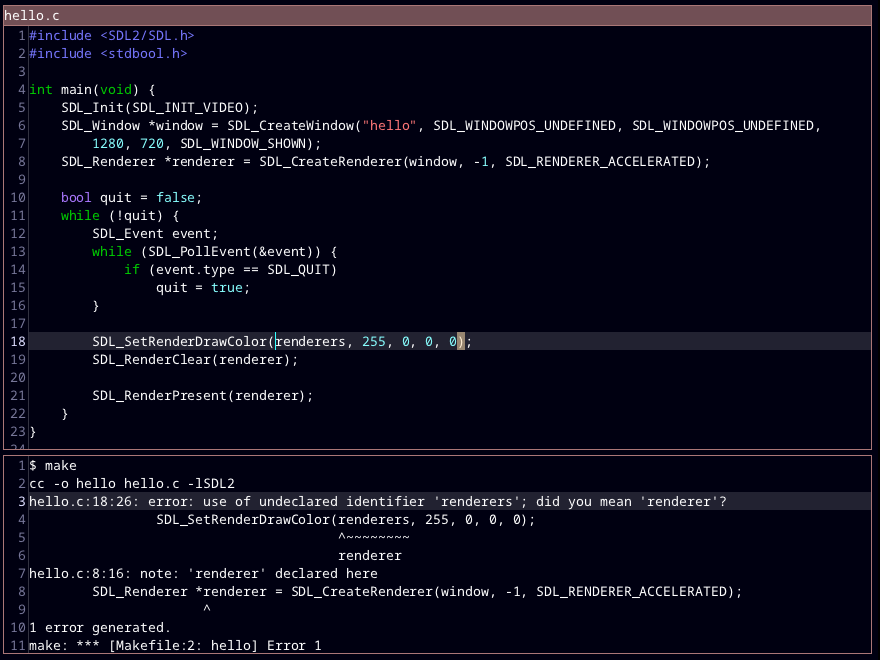
 To download installers for ted for Windows and Debian/Ubuntu, go to
the [releases](https://github.com/pommicket/ted/releases).
## Why?
There are a lot of text editors out there. ted doesn't do anything new.
Here are some benefits of ted:
- Starts up immediately.
- Doesn't lag for reasonably-sized files.
- VERY small - a full ted installation is < 5 MB.
ted isn't incredibly complicated, but it does have some nice features you might not find
in other editors.
## Supported features
- Customization of (pretty much) all colors and keyboard commands.
- Basic text editing like copy+paste, undo+redo, etc.
- Multiple tabs, each with a different file
- Split screen
- Auto-indent
- Syntax highlighting for C, C++, CSS, Go, HTML, Java, JavaScript, LaTeX, Markdown, Python, Rust, and TypeScript.
- Find and replace (with regular expressions!)
- Run build command, go to errors
- Run any shell command
- Autocomplete
- Go to definition
- Go to line number
- Indent/dedent selection, comment/uncomment selection
- Keyboard macros
## Getting started with ted
After installing ted, you can just start using it like you would any other editor. The keyboard shortcuts
are mostly what you'd expect them to be (Ctrl+o for open, Ctrl+n for new, Ctrl+s for save, etc.).
### Tips
- Even if you don't want to change anything with ted, it's a good idea to look at the config file (see below) to
check out all of the keyboard shortcuts!
- You can use Ctrl+f for "find", but if you want to search for something across multiple files, you can do
Ctrl+! (run shell command), then run `grep -n search_term *.py`, for example (on Windows, you will need to have
cygwin or something in your PATH for this to work). The `-n` ensures that
ted can jump to the results, just like jumping to build errors.
- ted uses PCRE for regular expressions. This means that when using find+replace, if you want to
replace with a captured group, you need to use `$1`, not (as you might expect) `\1`.
### Configuration
At any time, you can check out all the keyboard shortcuts, and add your own, by opening your ted.cfg file.
To do this, press Ctrl+Shift+p
to open the command palette, and select "open-config". There are several sections to this config file:
- `[core]` for core settings
- `[keyboard]` for keyboard shortcuts
- `[colors]` for colors
- `[extensions]` for which file extensions should be mapped to which programming languages
Comments begin with `#`, and all other lines are of the form `key = value`.
Strings can span multiple lines and can either be delimited with " or \`.
You can also include files with `%include` (note: the included file must start with a section header).
By default ted's settings will automatically update when you save the config file.
The `core` section's settings should be pretty familiar (font size, etc.) or should have comments on the previous line
explaining what they do.
Keyboard shortcuts are of the form `key combo = action`, where `action` is an argument (number or string),
followed by a command. The commands match the things in the command palette (Ctrl+Shift+p), but `:` is added to the beginning to make
it clear it's a command.
A list of key names can be found [here](https://wiki.libsdl.org/SDL2/SDL_Keycode).
Colors are formatted like `#rgb`, `#rgba`, `#rrggbb` or `#rrggbbaa`, where r, g, b, and a are red, green,
blue, and alpha (transparency/opacity). You can use a [color picker](https://www.google.com/search?q=color+picker) to help you out.
The extensions section is fairly self-explanatory.
You can set settings for specific programming languages like this:
```
[HTML.core]
# set tab width for HTML files to 2
tab-width = 2
```
To reset your ted configuration to the default settings, delete your ted.cfg file (`~/.local/share/ted/ted.cfg` on Linux,
`C:\Users\
To download installers for ted for Windows and Debian/Ubuntu, go to
the [releases](https://github.com/pommicket/ted/releases).
## Why?
There are a lot of text editors out there. ted doesn't do anything new.
Here are some benefits of ted:
- Starts up immediately.
- Doesn't lag for reasonably-sized files.
- VERY small - a full ted installation is < 5 MB.
ted isn't incredibly complicated, but it does have some nice features you might not find
in other editors.
## Supported features
- Customization of (pretty much) all colors and keyboard commands.
- Basic text editing like copy+paste, undo+redo, etc.
- Multiple tabs, each with a different file
- Split screen
- Auto-indent
- Syntax highlighting for C, C++, CSS, Go, HTML, Java, JavaScript, LaTeX, Markdown, Python, Rust, and TypeScript.
- Find and replace (with regular expressions!)
- Run build command, go to errors
- Run any shell command
- Autocomplete
- Go to definition
- Go to line number
- Indent/dedent selection, comment/uncomment selection
- Keyboard macros
## Getting started with ted
After installing ted, you can just start using it like you would any other editor. The keyboard shortcuts
are mostly what you'd expect them to be (Ctrl+o for open, Ctrl+n for new, Ctrl+s for save, etc.).
### Tips
- Even if you don't want to change anything with ted, it's a good idea to look at the config file (see below) to
check out all of the keyboard shortcuts!
- You can use Ctrl+f for "find", but if you want to search for something across multiple files, you can do
Ctrl+! (run shell command), then run `grep -n search_term *.py`, for example (on Windows, you will need to have
cygwin or something in your PATH for this to work). The `-n` ensures that
ted can jump to the results, just like jumping to build errors.
- ted uses PCRE for regular expressions. This means that when using find+replace, if you want to
replace with a captured group, you need to use `$1`, not (as you might expect) `\1`.
### Configuration
At any time, you can check out all the keyboard shortcuts, and add your own, by opening your ted.cfg file.
To do this, press Ctrl+Shift+p
to open the command palette, and select "open-config". There are several sections to this config file:
- `[core]` for core settings
- `[keyboard]` for keyboard shortcuts
- `[colors]` for colors
- `[extensions]` for which file extensions should be mapped to which programming languages
Comments begin with `#`, and all other lines are of the form `key = value`.
Strings can span multiple lines and can either be delimited with " or \`.
You can also include files with `%include` (note: the included file must start with a section header).
By default ted's settings will automatically update when you save the config file.
The `core` section's settings should be pretty familiar (font size, etc.) or should have comments on the previous line
explaining what they do.
Keyboard shortcuts are of the form `key combo = action`, where `action` is an argument (number or string),
followed by a command. The commands match the things in the command palette (Ctrl+Shift+p), but `:` is added to the beginning to make
it clear it's a command.
A list of key names can be found [here](https://wiki.libsdl.org/SDL2/SDL_Keycode).
Colors are formatted like `#rgb`, `#rgba`, `#rrggbb` or `#rrggbbaa`, where r, g, b, and a are red, green,
blue, and alpha (transparency/opacity). You can use a [color picker](https://www.google.com/search?q=color+picker) to help you out.
The extensions section is fairly self-explanatory.
You can set settings for specific programming languages like this:
```
[HTML.core]
# set tab width for HTML files to 2
tab-width = 2
```
To reset your ted configuration to the default settings, delete your ted.cfg file (`~/.local/share/ted/ted.cfg` on Linux,
`C:\Users\| Version | Description | Date |
|---|---|---|
| 0.0 | Very basic editor | 2021 Jan 31 |
| 0.1 | Syntax highlighting | 2021 Feb 3 |
| 0.2 | Line numbers, check if file changed by another program | 2021 Feb 5 |
| 0.3 | Find+replace, highlight matching parentheses, indent/dedent selection | 2021 Feb 11 |
| 0.3a | Find+replace bug fixes, view-only mode | 2021 Feb 14 |
| 0.4 | :build | 2021 Feb 18 |
| 0.5 | Go to definition | 2021 Feb 22 |
| 0.5a | Several bugfixes, go to line | 2021 Feb 23 |
| 0.6 | Split-screen | 2021 Feb 28 |
| 0.7 | Restore session, command selector, :shell, big bug fixes | 2021 Mar 3 |
| 0.8 | Autocomplete | 2021 Mar 4 |
| 1.0 | Bugfixes, small additional features, installers | 2021 Apr 20 |
| 1.0r1 | Windows-specific bugfixes, update to new version of PCRE2 | 2022 Jan 1 |
| 1.0r2 | Various bugfixes involving closing tabs and windows | 2022 Mar 26 |
| 1.0r3 | Better TeX syntax highlighting, move to cursor on backspace/delete | 2022 Jul 7 |
| 1.1 | Minor fixes, syntax highlighting for JavaScript, Java, and Go | 2022 Jul 22 |
| 1.2 | Bug fixes, per-language settings | 2022 Jul 29 |
| 1.2r1 | Mouse X1/X2 bug fix, support for X1/X2 commands. | 2022 Aug 19 |
| 1.2r2 | Shift+PgUp/PgDown, many rust-related fixes. | 2022 Sep 30 |
| 1.3 | Custom background shader, some bugfixes. | 2022 Nov 3 |
| 1.3r1 | Fixed rust, python syntax highlighting. | 2022 Nov 4 |
| 1.3r2 | Fixed high CPU usage on some devices. | 2022 Dec 7 |
| 2.0 | LSP support and a bunch of other things. | 2023 Jan 11 |
| 2.1 | Better interaction between path+language specific settings, themes, and other things. | 2023 Mar 7 |
| 2.2 | Keyboard macros | 2023 Mar 23 |
| 2.2r1 | Minor bug fixes | 2023 Mar 27 |
| 2.3 | `:matching-bracket`, various minor improvements | 2023 May 11 |
| 2.3.1 | Bugfixes, better undo chaining, highlight TODOs in comments. | 2023 May 22 |
| 2.3.2 | Misc bugfixes | 2023 Jun 17 |
| 2.3.3 | JS highlighting improvments, fix TODO highlighting for single-line comments | 2023 Jul 6 |
| 2.3.4 | Unicode bugfix, `:copy-path` | 2023 Jul 14 |
| 2.4 | Font overhaul — allow multiple fonts, and variable-width fonts. | 2023 Jul 18 |